

Where to find skills
View and manage your skills in the Skills tab in the right-side menu.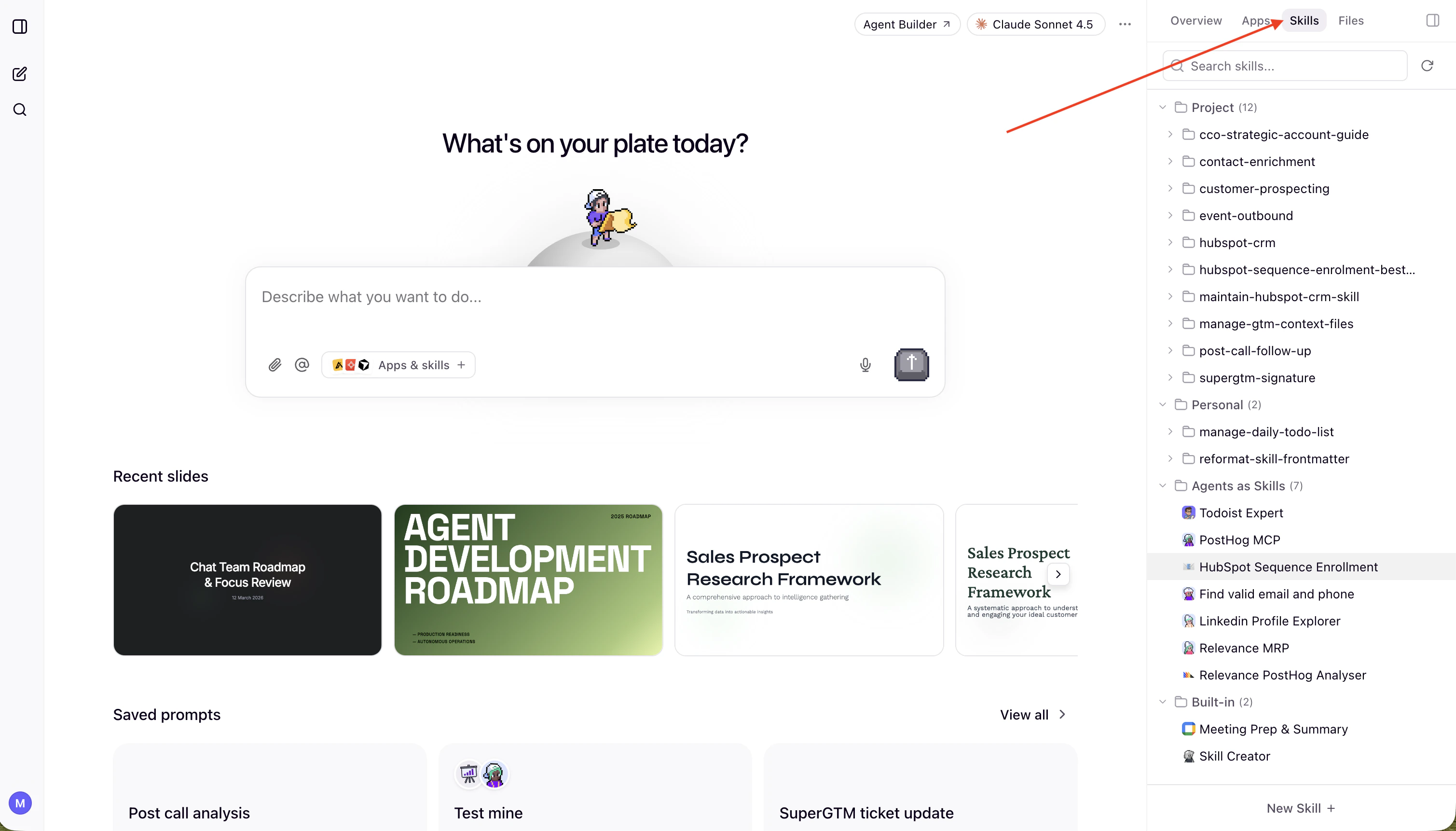
How the agent knows what’s available
The agent sees all available skills at the start of every conversation. When your request matches a skill, it activates the skill and loads the full instructions. To reference a skill directly, use the/ menu. Type / in the chat input to see your available skills, then filter by typing part of the skill name. Use the arrow keys to navigate and press Enter or Tab to insert the skill into your message.
How to create a skill
“Create a skill that does [description of the workflow]”The agent activates the built-in Skill Creator and walks you through defining the workflow, integrations, output format, and whether it should be a project skill (shared) or user skill (personal). The agent handles formatting and saving. You can also ask the agent to update an existing skill at any time.
Example: creating a post-meeting follow-up skill
Building the skill from a conversation
Building the skill from a conversation
After a sales call, you ask the agent:
“Summarize my call with Relevance AI. Pull the action items, update the deal in HubSpot, and draft a follow-up email to the attendees.”The agent finds the meeting in Google Calendar, reads the transcript, extracts action items, updates HubSpot, and drafts the email. You refine:
“Always include the deal stage and next scheduled meeting in the summary. Format the action items as a table with columns for action, owner, and deadline.”The agent adjusts the output. Now you tell it:
“Make a skill out of this conversation.”The agent activates the Skill Creator, reviews the conversation, and builds a skill that captures the full workflow — steps, integrations, output format, and your formatting preferences. It saves the skill to your catalog. From then on, the agent can run that same workflow whenever you need it.
Using the skill afterward
Using the skill afterward
From then on, whenever you say something like:
- “Follow up on my call with Relevance AI”
- “I just got off a call with Sarah — process it”
- “Summarize my last meeting and update the CRM”
- Meeting summary (date, attendees, duration, deal stage, next scheduled meeting)
- Action items table (action, owner, deadline)
- Confirmation of what was updated in HubSpot
- A draft follow-up email ready to send or edit
- Any open questions that need attention
Types of skills
- Project skills
- User skills
- Built-in skills
Shared workflows available to everyone in your project. Use these for recurring tasks your team handles the same way — post-meeting follow-ups, pipeline reviews, or weekly reporting.Only admins can create and edit project skills. All project members can use them.
Running skills on a schedule
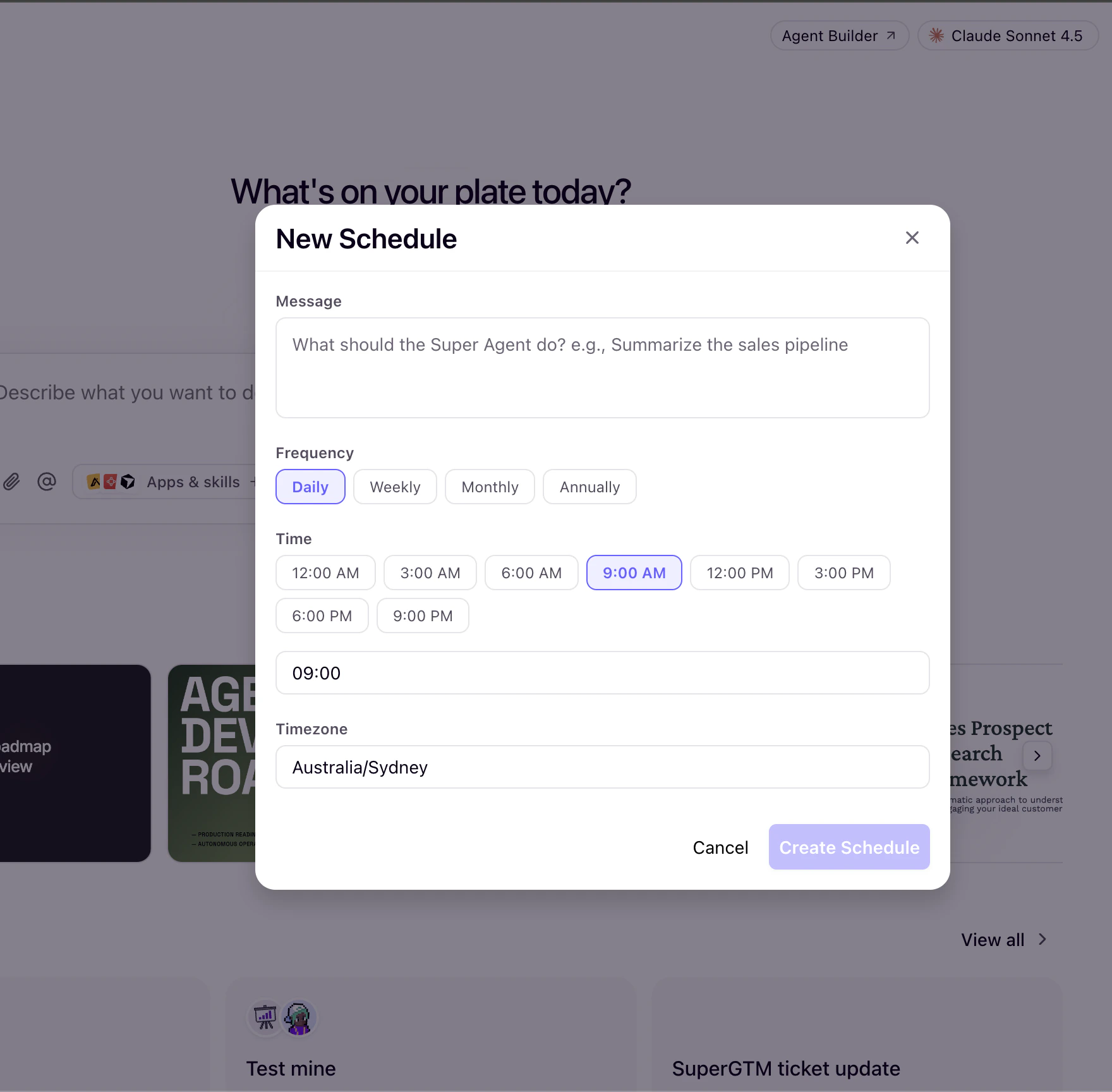
Example: scheduling a Follow up all calls skill
Example: scheduling a Follow up all calls skill
You have a skill called Follow up all calls that checks recent meetings, lists outstanding action items, and flags clients you haven’t followed up with. You schedule it to run every weekday morning at 9am.Each morning, the agent runs the skill, checks your calendar and CRM, and sends you a summary — missed follow-ups, overdue action items, and calls without a recap.
Daily pipeline reviews
Summarize deal movements, stale opportunities, and next actions each morning.
Weekly reporting
Generate end-of-week reports covering activity metrics, closed deals, and upcoming priorities.
CRM hygiene checks
Flag missing fields, outdated contacts, and deals without recent activity.
Monday meeting prep
Brief you on upcoming meetings, attendee context, and open action items for the week.
Tips for writing and managing skills
The agent already knows how to create, refine, and consolidate skills through its built-in Skill Creator. These tips help you get more out of your skills.Scope each skill to one workflow
Scope each skill to one workflow
Each skill should handle one specific workflow — “post-meeting follow-up” or “weekly pipeline review,” not “handle all my sales tasks.” If you find yourself writing a skill that covers multiple unrelated workflows, split it into separate skills. You can always consolidate later once you’ve confirmed each piece works well on its own.
Describe when it should activate
Describe when it should activate
Include the kinds of things you’d say when you need this workflow. The agent uses these to match your requests to the right skill. Narrowly focused skills with clear descriptions produce more accurate matches.
Be specific about where to look
Be specific about where to look
Specify which integrations to use — “check HubSpot for the deal” is better than “check the CRM.”
Define the output
Define the output
Describe what the result should look like so the agent delivers consistent output every time.
Reference memory
Reference memory
If the skill should respect your preferences (email tone, formatting style), tell it to check your memory.
Don't over-specify
Don't over-specify
Define a clear process, but let the agent adapt to the data it finds. Specific steps are good; hard-coded values are not.
Start with a user skill, then promote to project
Start with a user skill, then promote to project
Use project skills for workflows the whole team runs the same way — post-meeting follow-ups, pipeline reviews, or weekly reporting. Use user skills for workflows tailored to your personal style or role. Start as a user skill and iterate through a few real scenarios until the results are consistent, then ask an admin to recreate it as a project skill. Each person’s agent applies their own memory when running a shared project skill, so the same skill adapts to individual preferences without needing separate versions.
Keep your catalog lean
Keep your catalog lean
Fewer well-defined skills outperform a large collection of vague ones. The agent sees all available skills at the start of every conversation, and when too many overlap or have ambiguous descriptions, matching accuracy drops. Periodically review your skills in the Skills tab — consolidate overlapping skills (ask the agent: “consolidate my meeting follow-up skills into one”) and remove any that haven’t been triggered in several weeks. If your team uses project skills, treat the shared catalog as a curated set of your highest-value workflows.